LG V410 Quick Start Guide
Browse online or download Quick Start Guide for Tablets LG V410. LG V410 Quick Start Guide User Manual
- Page / 16
- Table of contents
- BOOKMARKS

Summary of Contents
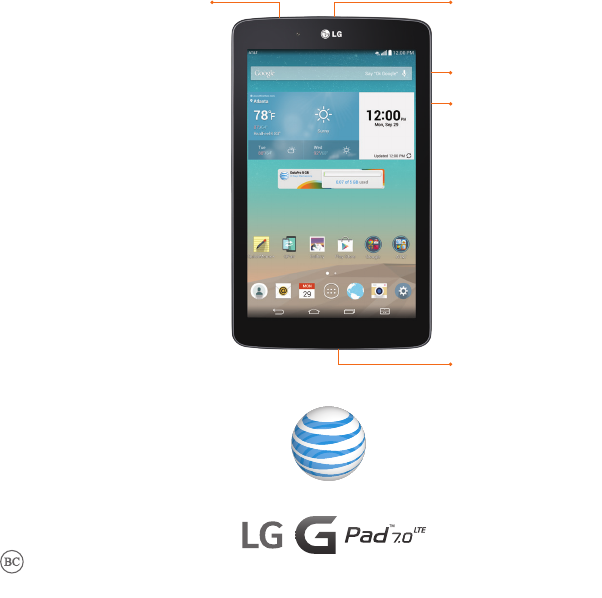
Quick StartVolumeCharging/USB portPower/lock keymicro-SIM/microSD™ card slot3.5 mm headset jackView two apps at once. From the home screen, press
If your AT&T service was activated at the time of purchase, you’ll automatically connect to the mobile network.AT&T AllAccessTo activate servi
These can be found in your AT&T folder or in Apps . From the home screen, tap > Language & input. Tap to the right of LG Keyboar
Get direct access to the home screen while keeping your tablet secure.Setup From the home screen, tap > Display > Lock screen > Select sc
From the home screen, tap . Tap an account type. Steps may vary from this point. Enter your email address and password and tap Next. Follow
If your AT&T service was activated at the time of purchase, you’ll automatically connect to the mobile network.AT&T AllAccessTo activate servi
These can be found in your AT&T folder or in Apps . From the home screen, tap > Language & input. Tap to the right of LG Keyboar
Get direct access to the home screen while keeping your tablet secure.Setup From the home screen, tap > Display > Lock screen > Select sc
Ready2Go helps you configure Wi-Fi®, email, and social networks when initially setting up your device.AT&T Ready2GoLink your Android™ 4.1 or higher
Add Apps or Widgets Press and hold an empty part of the screen. Tap Widgets or Apps. Tap the item you’d like to add.Change Wallpaper Press
Swipe the top of the screen downward to open the Notifications Panel.Notifications Sharing Photos From the home screen, tap . Tap an album. Tap a
Quick StartVolumeCharging/USB portPower/lock keymicro-SIM/microSD™ card slot3.5 mm headset jackView two apps at once. From the home screen, press
Ready2Go helps you configure Wi-Fi®, email, and social networks when initially setting up your device.AT&T Ready2GoLink your Android™ 4.1 or higher
Add Apps or Widgets Press and hold an empty part of the screen. Tap Widgets or Apps. Tap the item you’d like to add.Change Wallpaper Press
Swipe the top of the screen downward to open the Notifications Panel.Notifications Sharing Photos From the home screen, tap . Tap an album. Tap a
From the home screen, tap . Tap an account type. Steps may vary from this point. Enter your email address and password and tap Next. Follow
More documents for Tablets LG V410

Related products and manuals for Tablets LG V410
 (2 pages)
(1 pages)
(2 pages)
(1 pages)
 (50 pages)
(1 pages)
(1 pages)
(1 pages)
(66 pages)
(108 pages)
(108 pages)
(108 pages)
(130 pages)
(108 pages)
(138 pages)
(56 pages)
(110 pages)
(50 pages)
(1 pages)
(1 pages)
(1 pages)
(66 pages)
(108 pages)
(108 pages)
(108 pages)
(130 pages)
(108 pages)
(138 pages)
(56 pages)
(110 pages)

 (304 pages)
(149 pages)
(68 pages)
(104 pages)
(304 pages)
(149 pages)
(68 pages)
(104 pages)
© 2020, manymanuals.com. All rights reserved. | 0.031 s |
 Manymanuals.com
 Manymanuals.de
 Manymanuals.fr
 Manymanuals.it
 Manymanuals.pl
 Manymanuals.cz
 Manymanuals.es
 Manymanuals-pt.com
Comments to this Manuals